Compare RDS for SQL Server Instance Pricing
by Craig Cooley
Use Case
When sizing or right-sizing Amazon RDS for SQL Server, choosing the right instance family and size requires understanding the true total cost — not just the base compute price. Newer-generation instances (m7i, m8i, m8a, etc.) use unbundled pricing, where SQL Server and Windows license fees are separate line items added on top of compute. Older generations (m5, r5, r6i) bundle everything into a single price.
This can make comparison difficult:
- "Which is most cost effective — an r6i.8xlarge or an r8i.8xlarge?" The r6i is priced as 'bundled' and the r8i is priced as 'unbundled'. Knowing how costs are calculated for each is important to lowering costs.
- "How much would I save with BYOM (Bring Your Own Media)?" You need to know which families support BYOM and what the license-fee delta is.
- "What's the 1-year commitment discount?" Unbundled instances use Database Savings Plans; bundled ones use Reserved Instances — different APIs, different math.
- "What physical core count do I actually get with Optimize CPU?" The default core count (relevant for SQL Server licensing) isn't visible in the console pricing page.
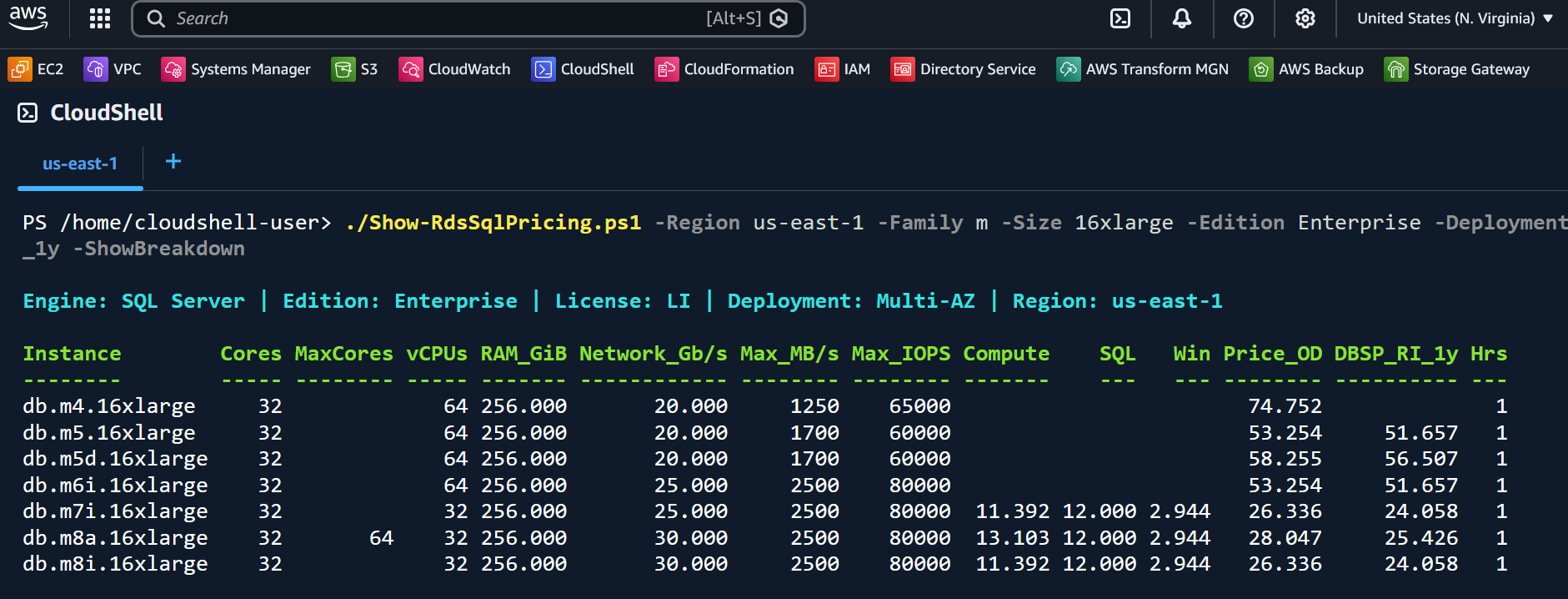
Show-RdsSqlPricing.ps1 answers all of these in a single table, pulling live data from the AWS Pricing, RDS, EC2, and Savings Plans APIs.
Common Scenarios
| Scenario | Command |
|---|---|
| Compare all R-family 8xlarge instances (Standard edition) | ./Show-RdsSqlPricing.ps1 -Family r -Size 8xlarge |
| Enterprise edition, Multi-AZ, with savings plan pricing | ./Show-RdsSqlPricing.ps1 -Edition Enterprise -Deployment Multi-AZ -Size 8xlarge -DBSP_RI_1y |
| BYOM cost comparison for 4xlarge | ./Show-RdsSqlPricing.ps1 -Edition Enterprise -Family m8i,r8i -Size 4xlarge -License BYOM -ShowBreakdown |
| Monthly cost estimate exported to CSV | ./Show-RdsSqlPricing.ps1 -Family r -Size all -Hours 730 -PassThru | Export-Csv monthly.csv |
| Find the cheapest instance under $15/hr | ./Show-RdsSqlPricing.ps1 -Size 8xlarge -PassThru | Where-Object Price_OD -lt 15 | Sort-Object Price_OD |
Sample Output
Quick Start
- Open AWS CloudShell
- Upload
Show-RdsSqlPricing.ps1(Actions → Upload file) - Start PowerShell:
pwsh - Run:
./Show-RdsSqlPricing.ps1 -Family r -Size 4xlarge -Edition Standard
Prerequisites
AWS CloudShell is recommended — PowerShell and AWS modules are pre-installed.
Modules required: AWS.Tools.Pricing, AWS.Tools.RDS, AWS.Tools.EC2
Optional (for commitment pricing): AWS.Tools.SavingsPlans
Key Features
- Accurate total cost for both bundled (older gen) and unbundled (newer gen) pricing models
- SQL Server license fees calculated with the Microsoft 4-vCPU minimum
- BYOM support — filters to eligible families and removes the SQL Server fee
- Physical core counts (default + max) from RDS Orderable Instance Options
- Network bandwidth, max EBS throughput, and max IOPS per instance — the storage and network ceilings that matter for right-sizing, not just vCPU and RAM
- 1-year commitment pricing (Database Savings Plan or Reserved Instance)
- Multi-AZ or Single-AZ options
Script Reference
See the full README for complete parameter documentation, output column descriptions, and pricing logic details.
Download Show-RdsSqlPricing.ps1 here.
Craig Cooley — July 2026